How to Voice Chat on Roblox Mobile (2026 Guide)
Are you looking to use voice chat on Roblox Mobile app to communicate with others and make good connections while playing the game?
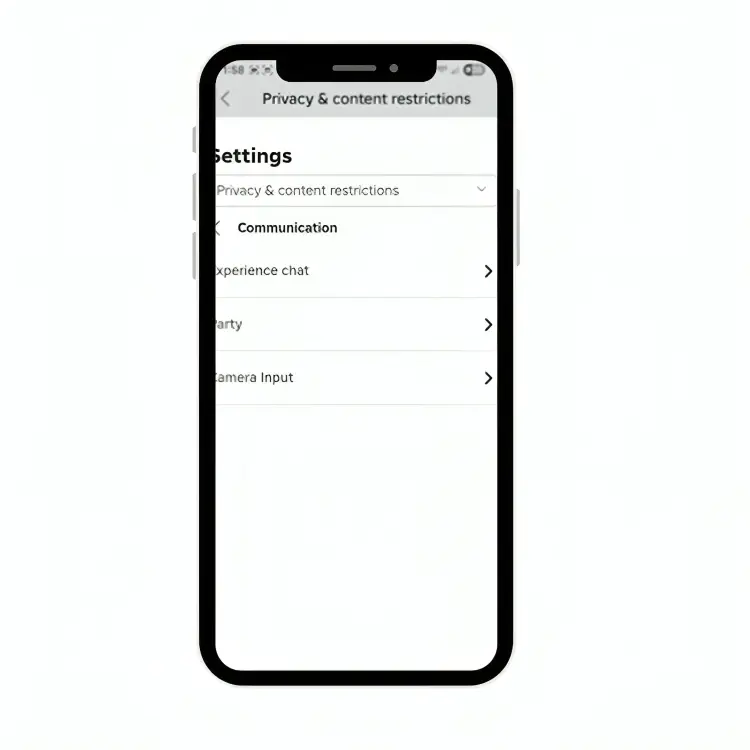
If you’re 13 or above, you can easily enable voice chat on Roblox Mobile game from Settings > Privacy & Content Restrictions > Communication. But before that, you must verify your phone number, ID, or your age by facial verification.
What Is Voice Chat in Roblox?
Roblox Voice Chat feature lets players talk to each other using real voice instead of text. Also, Roblox uses Spatial Voice technology which makes communication feel natural just like talking to people around you in real life.
After enabling the VC feature, you can find the green microphone icon in the top left corner, click on it and talk with other game players.
At the same time, you can mute anyone at any time by clicking the red slash.
How to Enable & Use Voice Chat on Roblox Mobile?
Whatever you’re using any Android device like Samsung, OPPO, Huawei, Vivo, Xiaomi, OnePlus, Realme, Google or an Apple iPhone.
Follow the instructions below to locate the Roblox Voice Chat feature on mobile.
- Open the Roblox app on mobile.
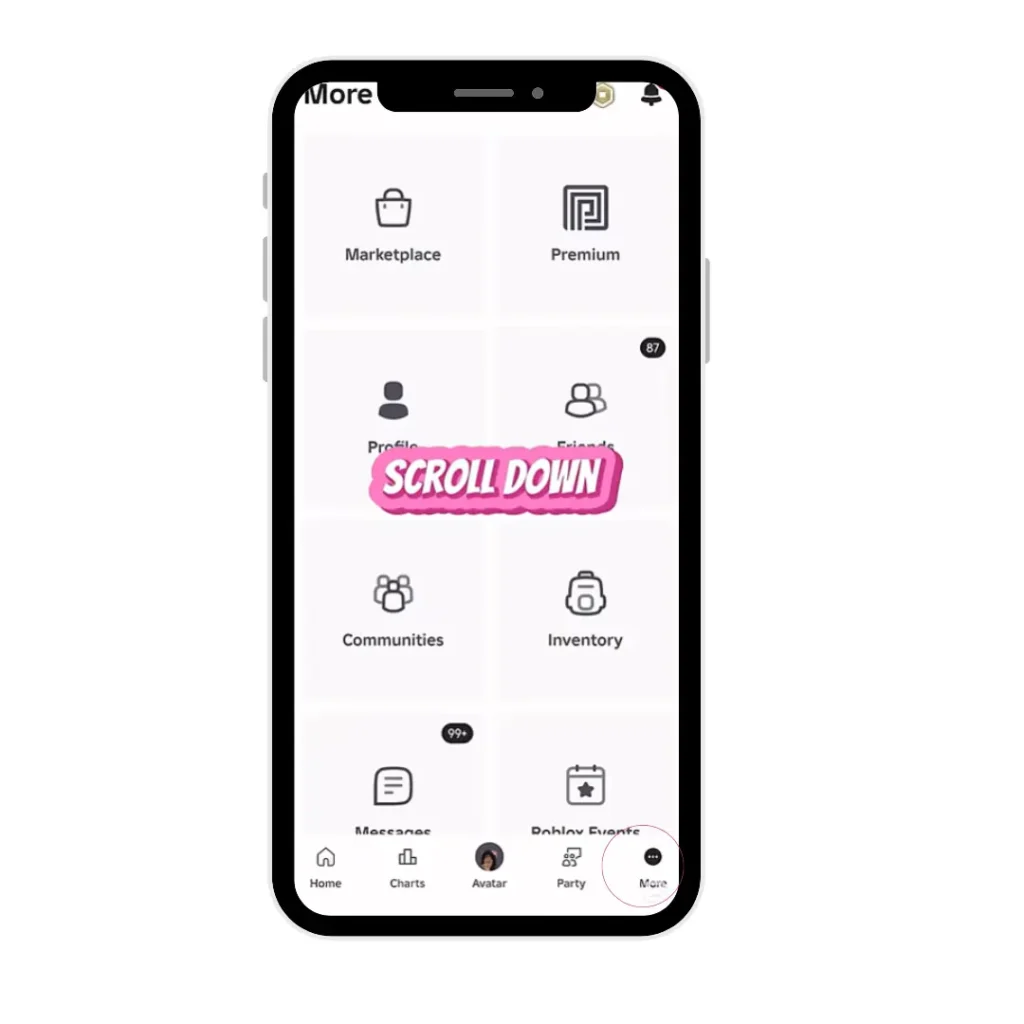
- Click on the More button on the right.
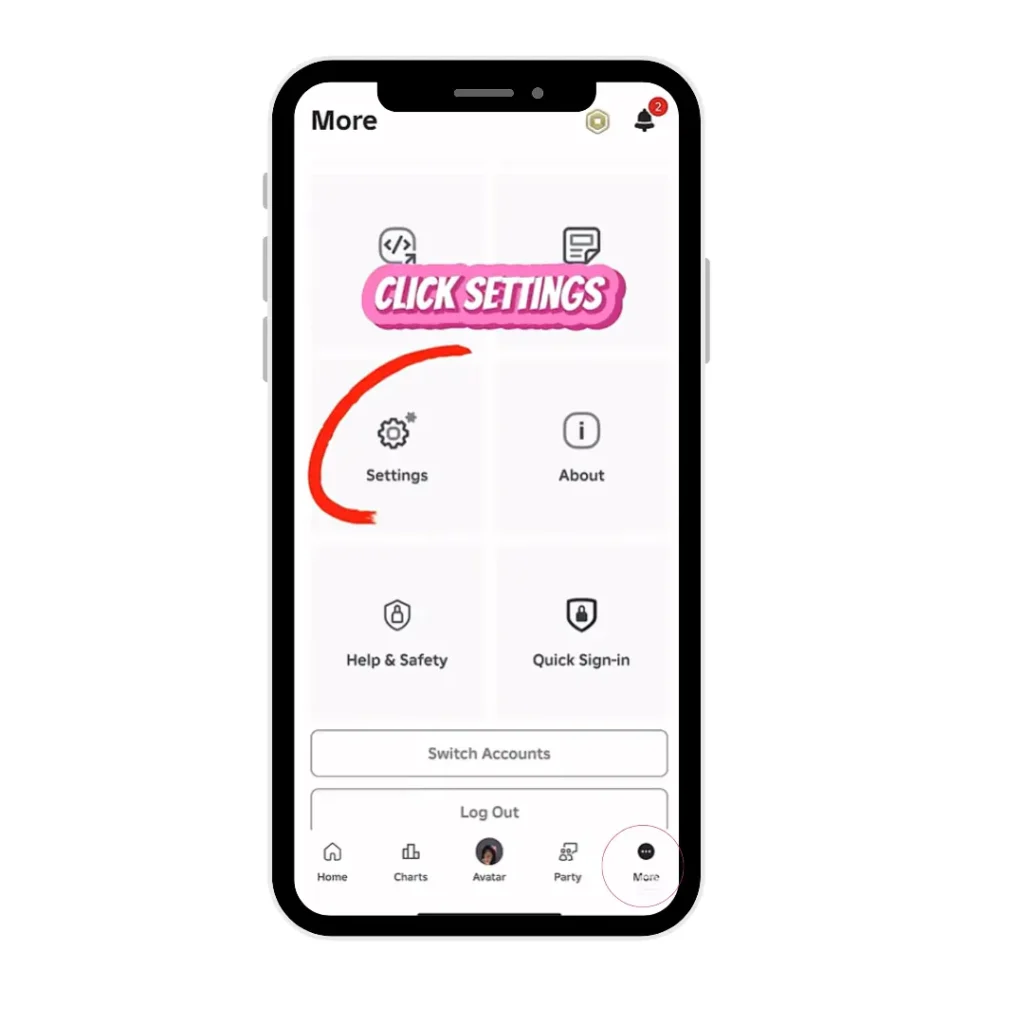
- Scroll down and tap on Settings.
- Click on Privacy and Content Restrictions then open Communication Options.
- Now you will see the VC option, simply toggle the button to the right side to enable voice chat.
Note: If these settings are missing on your smartphone, check your account info and make sure your ID is verified.
How to Verify Your Roblox Account to Unlock Voice Chat?
Identity verification needs government-issued documents like a passport, driving license, or national ID card.
- Open the app and tap More.
- Scroll down and select Settings.
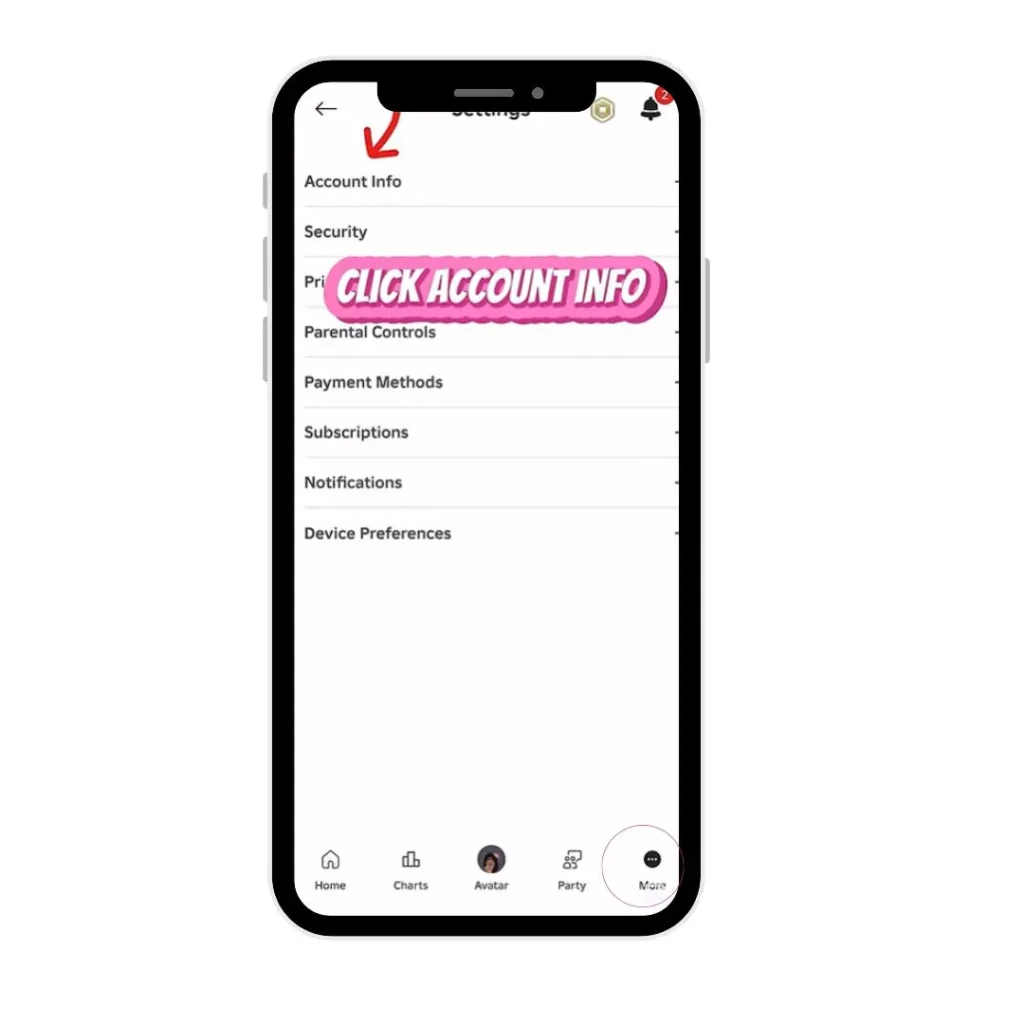
- Go to Account Info.
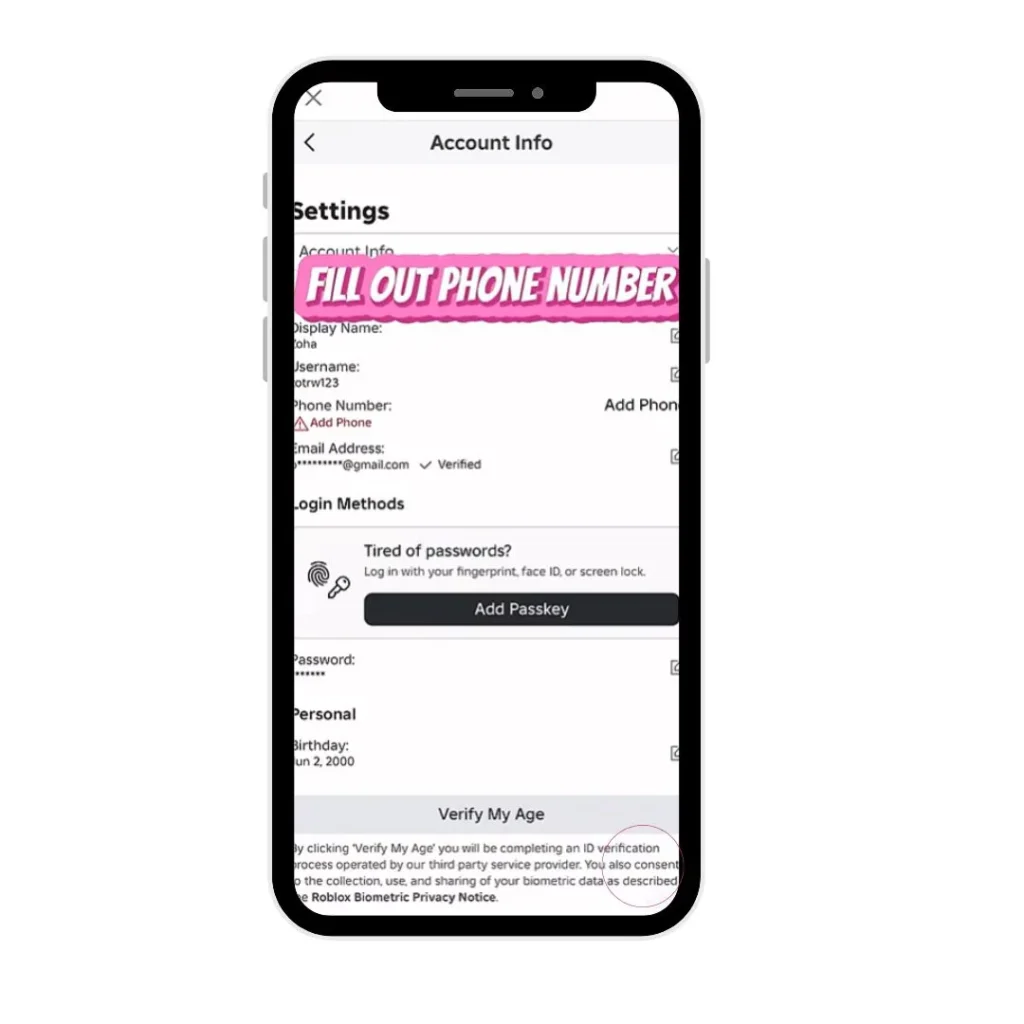
- Tap Verify my Age.
- Upload a government-issued ID.
- Next, take a live selfie to confirm your identity.
Once everything is verified, you will receive a confirmation email shortly. After that, you can enjoy the Roblox voice chat feature and make your gaming more interesting.
How to activate Voice Chat Without ID?
If you’re unable to verify the identification but curious to use voice chat, follow the process below.
Option 1: Phone Number Verification
- Open settings and go to account info.
- Tap on Add phone number.
- Enter your real phone number.
- Wait, shortly you will receive a confirmation text message.
- Put back the recently received 6 digit confirmation code.
Once verified, your account becomes eligible for voice chat in the supported regions.
Option B: Facial Age Estimation (Face Scan)
- Open settings then tap on account info.
- Tap on verify age.
- Choose Facial Age Estimation
- Allow camera access
- Scan your face. Roblox checks your age, estimates your age and verifies it.
- Refresh the app and check the verified tag.
- Now go to communication and enable voice chat.
This method is fast and widely supported. However, if want to complete freedom you can use Roblox MOD APK Unlimited Robux.
Troubleshooting Voice Chat Problems on Mobile
Why Can’t I See the Roblox Voice Chat Option
- Region not supported: Roblox voice chat may not support your current location. You can use a VPN to get VC features.
- Not verified: You must verify your phone, age, or ID to avail this feature.
- App version outdated: Update the app to the latest version, clear the cache, and restart the phone. You’ll see the audio communication option.
- Underage account: Age is important to unlock this feature. Roblox provides this feature to players aged 13 years or above.
Voice Chat Not Working on Roblox Mobile
The common reason is mic permission. If your device does not allow Roblox to access the microphone, voice chat will not work at all. To fix it follow the steps below
- Open Mobile Settings then Apps
- Select Roblox app
- Tap Permissions
- Enable Microphone
- Close setting and restart the the mobile
Roblox uses Spatial Voice and allows only 50 players to use voice chat per server. This means you only hear players standing near your avatar. You can’t listen to players too far away. So follow the player limitation and move closer to the player to experience a consistent smooth voice.
Network issues (Wi-Fi vs mobile data)Slow internet connection makes the voice lag, causes choppy audio, or sometimes makes the mic option completely disconnect. Follow the instruction below to fix the issue:
- Change your internet or wifi, connect with a better network to enjoy the game features to the fullest.
- Restart your router (unplug the power cable from the modem and router, wait 30 to 50 seconds, and then plugin again.
- Change low mobile data to high data
Audio device conflicts (Bluetooth/headset issues)
Sometimes faulty Bluetooth pairing and audio routing bugs disturb the gaming experience. So disconnect and reconnect the Bluetooth headset to test the microphone. If the problem is still priests, go with the built-in phone mic.
Roblox voice chat supported regions
Check the Roblox voice chat enabled countries below.
Final Remarks
In summary, you can easily verify accounts, configure settings, and enable voice chat in the Roblox mobile app.
So enable this feature to enhance connection with friends, teams, and instant communication while playing fast paced games like horror games, battle royale, team obstacle courses, and roleplay games.